Please follow the steps below to generate the transfer authorization from your Google Admin console:
Step 1: Log into your Google Admin console (https://admin.google.com) as the super administrator. After that, go to Menu button > Account > Reseller Management.
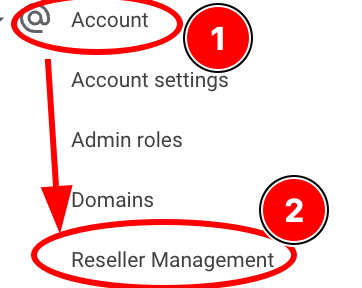
If you are unable to seek for this menu, alternatively you can copy this link and paste it in your Google Chrome browser instead: https://admin.google.com/TransferToken
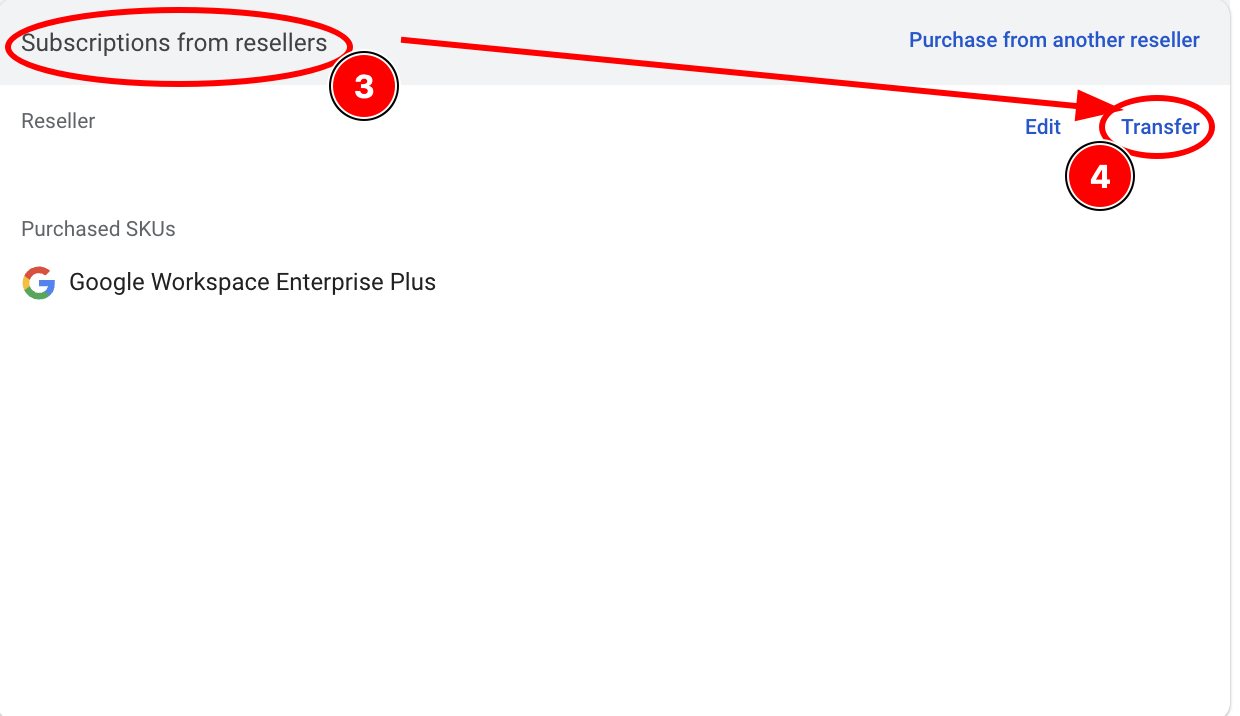
Step 2: On the new menu display, search for a menu titled, 'Subscriptions from resellers', identify the subscription that you would like to transfer (for your organization it's Business Standard, the picture below is just for references only) ,and click on the Transfer button.
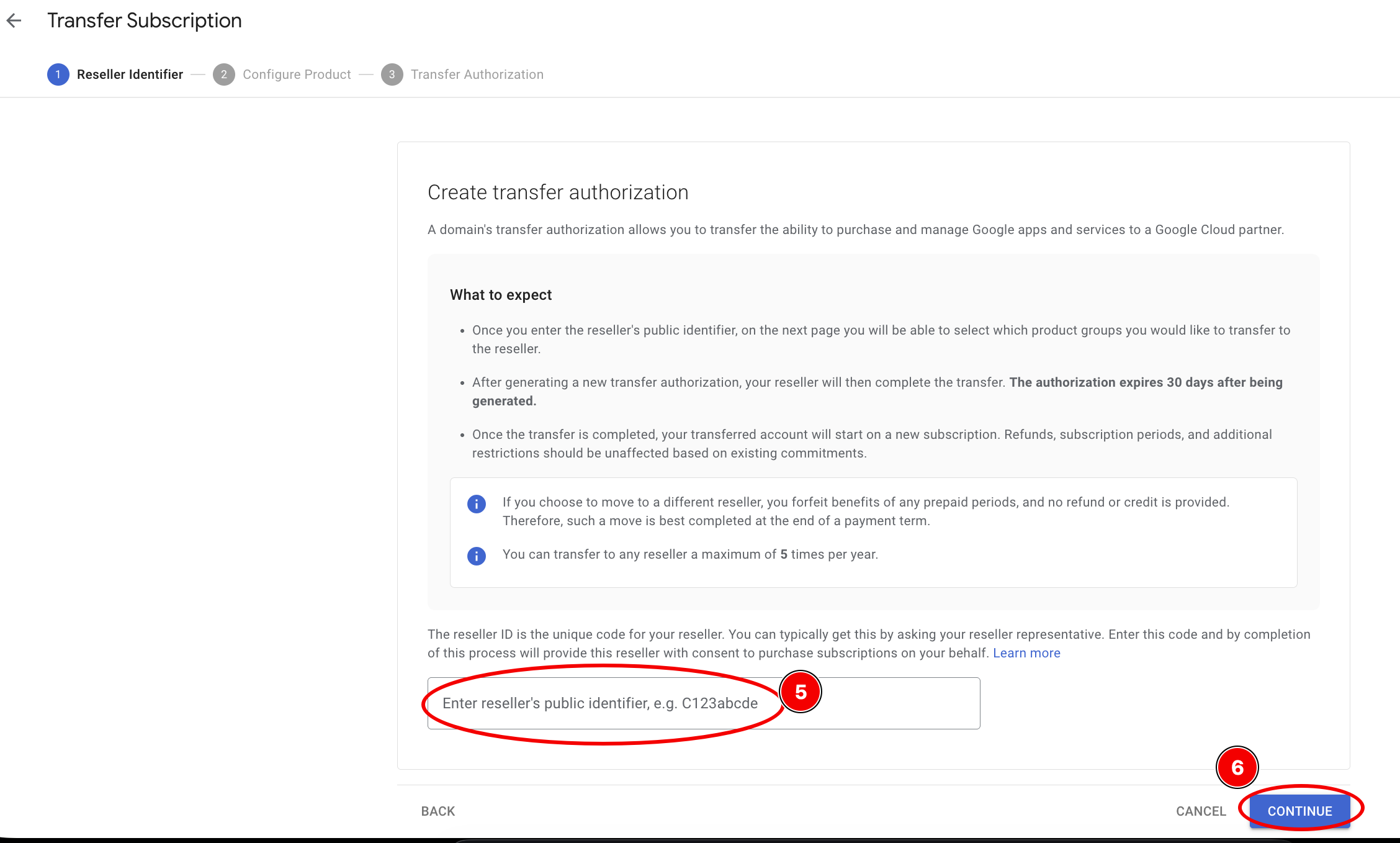
Step 3: A new menu display will appear that requires you to key in the reseller's Account ID/Public Identifier, in which you need to key in this: C02bln077, then click on the Continue button.
Step 4: A new display will appear, showing your current subscription list. Choose the product that you would like to transfer (refer to your signed quotation, the picture shown below is just for references only). Choose the option 'Transfer to my.g-asiapac.com'. Click the Continue button.
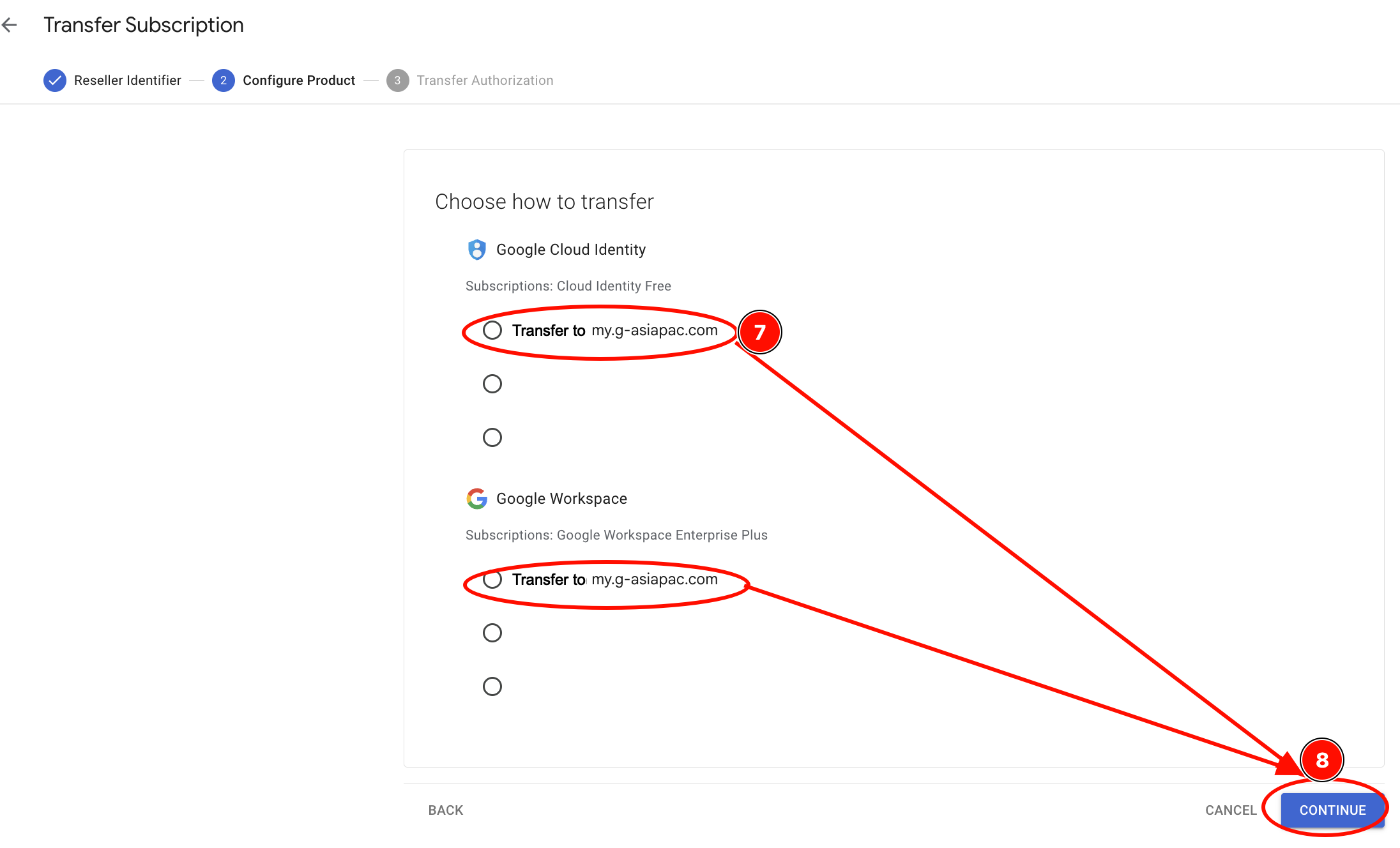
NOTE : Before clicking on continue, please share with us a screenshot of this page.
Step 5: A new menu display will appear. Click the box to agree to the terms and conditions, then click the 'Generate transfer authorization' button. Finally, click the 'Close' button and inform us when you have completed the process.
Was this article helpful?
That’s Great!
Thank you for your feedback
Sorry! We couldn't be helpful
Thank you for your feedback
Feedback sent
We appreciate your effort and will try to fix the article